Introduction
Integrating local language models directly into the Wazuh interface opens fundamentally new capabilities for information security teams. Unlike cloud-based AI solutions, Ollama enables security event analysis entirely within an organization’s isolated infrastructure, eliminating the transmission of confidential data beyond the network perimeter. Embedding an AI assistant into the Wazuh dashboard provides SOC analysts with instant access to intelligent alert interpretation, automatic incident correlation, and response recommendation generation directly within the workflow context. This approach significantly reduces the time required for initial threat analysis and decreases the cognitive load on specialists, allowing them to focus on strategic decision-making instead of routine event processing. Meanwhile, full control over the model and data remains within the organization, which is critically important for regulatory compliance and internal security policies.
Prerequisites and Environment Setup
- Docker
- Wazuh Docker repository
- Ollama Wazuh model, more details about the model
Installing and Configuring Ollama for Wazuh
For simplicity of setup, we will use Docker Compose to quickly deploy Ollama and connect it to Wazuh.
Setting Up and Running Wazuh
First, we need to clone the repository. We will use Wazuh 4.14.2.
git clone https://github.com/wazuh/wazuh-docker.git -b v4.14.2
Since this is a POC, we will use Wazuh single node.
Navigate to the directory cd wazuh-docker/single-node/ and generate certificates:
docker compose -f generate-indexer-certs.yml run --rm generator
Verify that all certificates are in place:
tree -D -L 3
[Jan 21 09:19]  .
├── [Jan 21 09:19]  README.md
├── [Jan 21 09:20]  config
│   ├── [Jan 21 09:19]  certs.yml
│   ├── [Jan 21 09:19]  wazuh_cluster
│   │   └── [Jan 21 09:19]  wazuh_manager.conf
│   ├── [Jan 21 09:19]  wazuh_dashboard
│   │   ├── [Jan 21 09:19]  opensearch_dashboards.yml
│   │   └── [Jan 21 09:19]  wazuh.yml
│   ├── [Jan 21 09:19]  wazuh_indexer
│   │   ├── [Jan 21 09:19]  internal_users.yml
│   │   └── [Jan 21 09:19]  wazuh.indexer.yml
│   └── [Jan 21 09:20]  wazuh_indexer_ssl_certs
│       ├── [Jan 21 09:20]  admin-key.pem
│       ├── [Jan 21 09:20]  admin.pem
│       ├── [Jan 21 09:20]  root-ca-manager.key
│       ├── [Jan 21 09:20]  root-ca-manager.pem
│       ├── [Jan 21 09:20]  root-ca.key
│       ├── [Jan 21 09:20]  root-ca.pem
│       ├── [Jan 21 09:20]  wazuh.dashboard-key.pem
│       ├── [Jan 21 09:20]  wazuh.dashboard.pem
│       ├── [Jan 21 09:20]  wazuh.indexer-key.pem
│       ├── [Jan 21 09:20]  wazuh.indexer.pem
│       ├── [Jan 21 09:20]  wazuh.manager-key.pem
│       └── [Jan 21 09:20]  wazuh.manager.pem
├── [Jan 21 09:19]  docker-compose.yml
└── [Jan 21 09:19]  generate-indexer-certs.yml
For testing, let’s start and verify that Wazuh Dashboard is accessible:
docker compose up -d
Check container status:
docker compose ps
NAME                            IMAGE                          COMMAND                  SERVICE           CREATED          STATUS          PORTS
single-node-wazuh.dashboard-1   wazuh/wazuh-dashboard:4.14.2   "/entrypoint.sh"         wazuh.dashboard   24 seconds ago   Up 23 seconds   0.0.0.0:443->5601/tcp, [::]:443->5601/tcp
single-node-wazuh.indexer-1     wazuh/wazuh-indexer:4.14.2     "/entrypoint.sh open…"   wazuh.indexer     28 seconds ago   Up 23 seconds   0.0.0.0:9200->9200/tcp, [::]:9200->9200/tcp
single-node-wazuh.manager-1     wazuh/wazuh-manager:4.14.2     "/init"                  wazuh.manager     28 seconds ago   Up 23 seconds   0.0.0.0:1514-1515->1514-1515/tcp, [::]:1514-1515->1514-1515/tcp, 0.0.0.0:514->514/udp, [::]:514->514/udp, 0.0.0.0:55000->55000/tcp, [::]:55000->55000/tcp
You can verify accessibility by opening https://localhost:443 in your browser. The login and password can be found in docker-compose.yml.
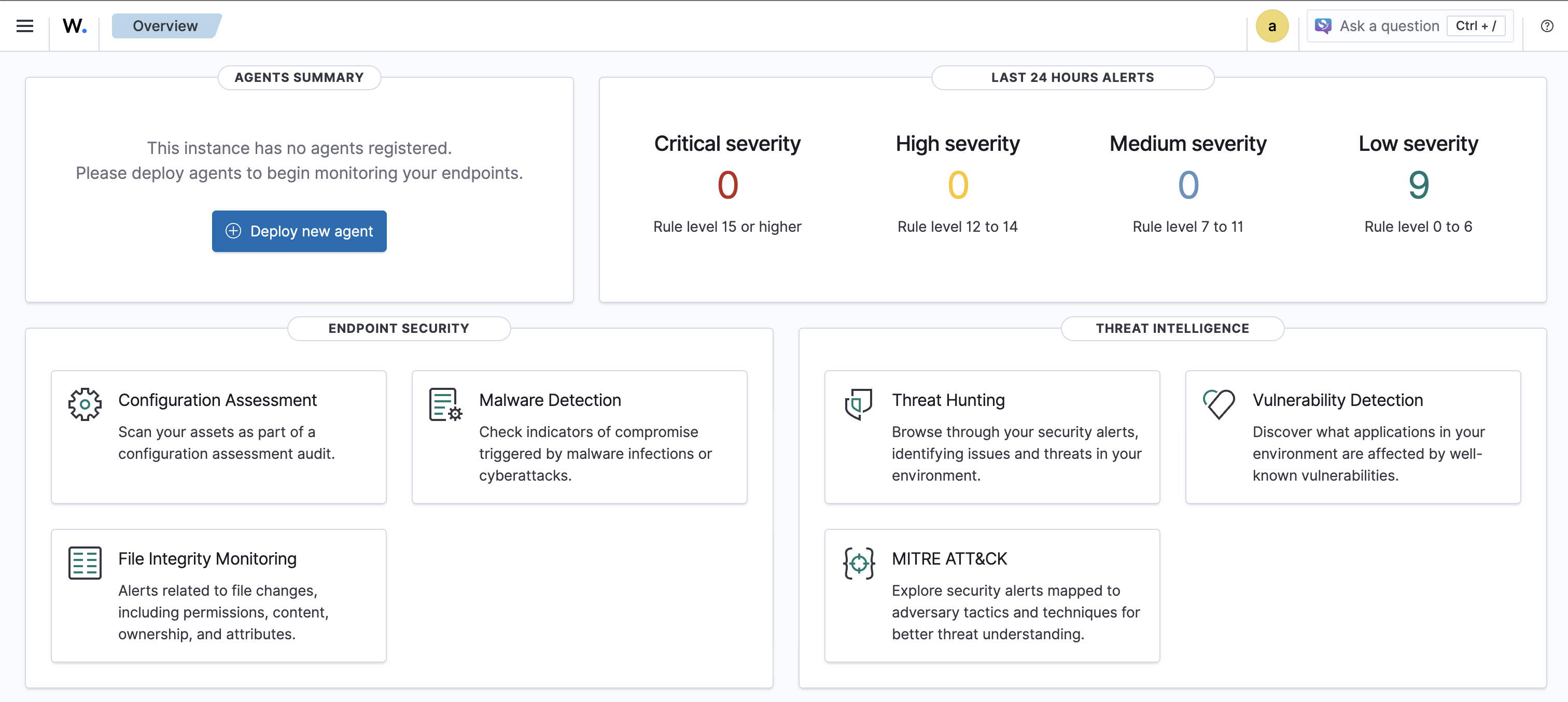
Once you have a working Wazuh single node, we begin the integration with Ollama.
Setting Up and Running Ollama
For simplicity of integration, we will use the same docker-compose.yml as for Wazuh.
Add a new service:
  ollama:
    image: ollama/ollama:latest
    ports:
      - "8080:11434"
    container_name: ollama
    tty: true
    restart: always
    entrypoint: ["/usr/bin/bash", "/entrypoint.sh"]
    environment:
      - OLLAMA_KEEP_ALIVE=-1
      - OLLAMA_NUM_PARALLEL=2
      - OLLAMA_HOST=0.0.0.0
    volumes:
      - .:/code
      - ./ollama/ollama:/root/.ollama
      - ./scripts/entrypoint.sh:/entrypoint.sh
Create the ./scripts/ folder and entrypoint.sh:
#!/bin/bash
/bin/ollama serve &
pid=$!
sleep 5
ollama pull OpenNix/wazuh-llama-3.1-8B-v1
wait $pid
The entrypoint is needed for automatic Ollama startup with the required model. This is actually optional and the model can be selected manually.
Verify everything together by running docker-compose:
docker compose up -d
Model pulling will take some time, but eventually the model should be available:
docker compose exec ollama ollama ls
NAME                                    ID              SIZE      MODIFIED
OpenNix/wazuh-llama-3.1-8B-v1:latest    a453c6e1d4aa    4.7 GB    7 seconds ago
Now let’s try asking the model something:
docker compose exec ollama ollama run OpenNix/wazuh-llama-3.1-8B-v1 "Analyze this Wazuh alert: SSH login from 192.168.1.100 to root account"

Rule Level: 12 - [High importance event]

Event Type: SSH login attempt

Detailed Reasoning: "The rule level of 12 indicates that this is a high-priority alert. The user's language input was English, so I will provide my response in English as well.

The Wazuh alert suggests that there has been an SSH login attempt from the IP address 192.168.1.100 to the root account on your system. This could be a potential security threat if the login was not
authorized or if the user is attempting to gain unauthorized access to your system.

Risk Assessment: "High risk - this alert requires immediate attention as it may indicate unauthorized access to your system."

Recommended Actions:

* Investigate the source of the SSH login attempt (192.168.1.100)
* Check the authentication logs to see if the login was successful or not
* Review the system's security policies and ensure they are up-to-date and enforced
* Consider implementing additional security measures such as rate limiting, account lockouts, or two-factor authentication

Investigation Guidance: "To investigate this alert, follow these steps:

1. Check the system logs for any signs of unauthorized access or suspicious activity.
2. Review the system's configuration to ensure that SSH is properly configured and not vulnerable to exploits.
3. Verify that the IP address 192.168.1.100 is a trusted source or has been blacklisted.
4. Investigate the user account that was attempted to be logged in as (root) to see if it has any security risks associated with it.

MITRE ATT&CK: "T1071 - Application Layer Protocol"

This rule matches one of the techniques identified by MITRE ATT&CK, which involves using legitimate protocols and tools for malicious purposes. In this case, the attacker is attempting to use SSH (a
legitimate protocol) to gain unauthorized access to the system.

Overall, this alert requires immediate attention as it may indicate unauthorized access to your system."
Integrating Ollama with Wazuh Dashboard
Installing Plugins for Wazuh Dashboard and Wazuh Indexer
First, we need to install the required OpenSearch plugins. For Wazuh v4.14.2, you need to download opensearch-dashboards v2.19.4.
Create a local folder for plugins:
mkdir config/wazuh_dashboard/plugins
Download and extract:
curl https://artifacts.opensearch.org/releases/bundle/opensearch-dashboards/2.19.4/opensearch-dashboards-2.19.4-linux-x64.tar.gz -o opensearch-dashboards.tar.gz
tar -xvzf opensearch-dashboards.tar.gz
Copy the plugins:
cp -r opensearch-dashboards-2.19.4/plugins/observabilityDashboards config/wazuh_dashboard/plugins/
cp -r opensearch-dashboards-2.19.4/plugins/mlCommonsDashboards config/wazuh_dashboard/plugins/
cp -r opensearch-dashboards-2.19.4/plugins/assistantDashboards config/wazuh_dashboard/plugins/
Next, configure volumes with the new plugins:
- ./config/wazuh_dashboard/plugins/assistantDashboards:/usr/share/wazuh-dashboard/plugins/assistantDashboards
- ./config/wazuh_dashboard/plugins/mlCommonsDashboards:/usr/share/wazuh-dashboard/plugins/mlCommonsDashboards
- ./config/wazuh_dashboard/plugins/observabilityDashboards:/usr/share/wazuh-dashboard/plugins/observabilityDashboards
The Wazuh Dashboard service will look something like this:
  wazuh.dashboard:
    image: wazuh/wazuh-dashboard:4.14.2
    hostname: wazuh.dashboard
    restart: always
    ports:
      - 443:5601
    environment:
      - INDEXER_USERNAME=admin
      - INDEXER_PASSWORD=SecretPassword
      - WAZUH_API_URL=https://wazuh.manager
      - DASHBOARD_USERNAME=kibanaserver
      - DASHBOARD_PASSWORD=kibanaserver
      - API_USERNAME=wazuh-wui
      - API_PASSWORD=MyS3cr37P450r.*-
    volumes:
      - ./config/wazuh_indexer_ssl_certs/wazuh.dashboard.pem:/usr/share/wazuh-dashboard/certs/wazuh-dashboard.pem
      - ./config/wazuh_indexer_ssl_certs/wazuh.dashboard-key.pem:/usr/share/wazuh-dashboard/certs/wazuh-dashboard-key.pem
      - ./config/wazuh_indexer_ssl_certs/root-ca.pem:/usr/share/wazuh-dashboard/certs/root-ca.pem
      - ./config/wazuh_dashboard/opensearch_dashboards.yml:/usr/share/wazuh-dashboard/config/opensearch_dashboards.yml
      - ./config/wazuh_dashboard/wazuh.yml:/usr/share/wazuh-dashboard/data/wazuh/config/wazuh.yml
      - wazuh-dashboard-config:/usr/share/wazuh-dashboard/data/wazuh/config
      - wazuh-dashboard-custom:/usr/share/wazuh-dashboard/plugins/wazuh/public/assets/custom
      - ./config/wazuh_dashboard/plugins/assistantDashboards:/usr/share/wazuh-dashboard/plugins/assistantDashboards
      - ./config/wazuh_dashboard/plugins/mlCommonsDashboards:/usr/share/wazuh-dashboard/plugins/mlCommonsDashboards
      - ./config/wazuh_dashboard/plugins/observabilityDashboards:/usr/share/wazuh-dashboard/plugins/observabilityDashboards
    depends_on:
      - wazuh.indexer
    links:
      - wazuh.indexer:wazuh.indexer
      - wazuh.manager:wazuh.manager
Next, modify opensearch_dashboards.yml and enable the following:
assistant.chat.enabled: true
observability.query_assist.enabled: true
opensearch.requestTimeout: 300000
opensearch.shardTimeout: 300000
opensearch.pingTimeout: 300000
Now it’s time to install the required plugins for Wazuh indexer:
mkdir -p ./config/wazuh_indexer/plugins

cd ./config/wazuh_indexer/plugins

curl -L -O https://repo1.maven.org/maven2/org/opensearch/plugin/opensearch-flow-framework/2.19.4.0/opensearch-flow-framework-2.19.4.0.zip
curl -L -O https://repo1.maven.org/maven2/org/opensearch/plugin/opensearch-skills/2.19.4.0/opensearch-skills-2.19.4.0.zip
mkdir -p opensearch-flow-framework
mkdir -p opensearch-skills
unzip opensearch-flow-framework-2.19.4.0.zip -d opensearch-flow-framework/
unzip opensearch-skills-2.19.4.0.zip -d opensearch-skills/

rm -f *.zip
After extracting the archives, make changes to docker-compose.yml and add the required volumes:
- ./config/wazuh_indexer/plugins/opensearch-flow-framework:/usr/share/wazuh-indexer/plugins/opensearch-flow-framework
- ./config/wazuh_indexer/plugins/opensearch-skills:/usr/share/wazuh-indexer/plugins/opensearch-skills
Save the changes and restart everything:
docker compose up -d --force-recreate
Configuring Wazuh Dashboard for Ollama
Open Wazuh Dashboard in your browser:

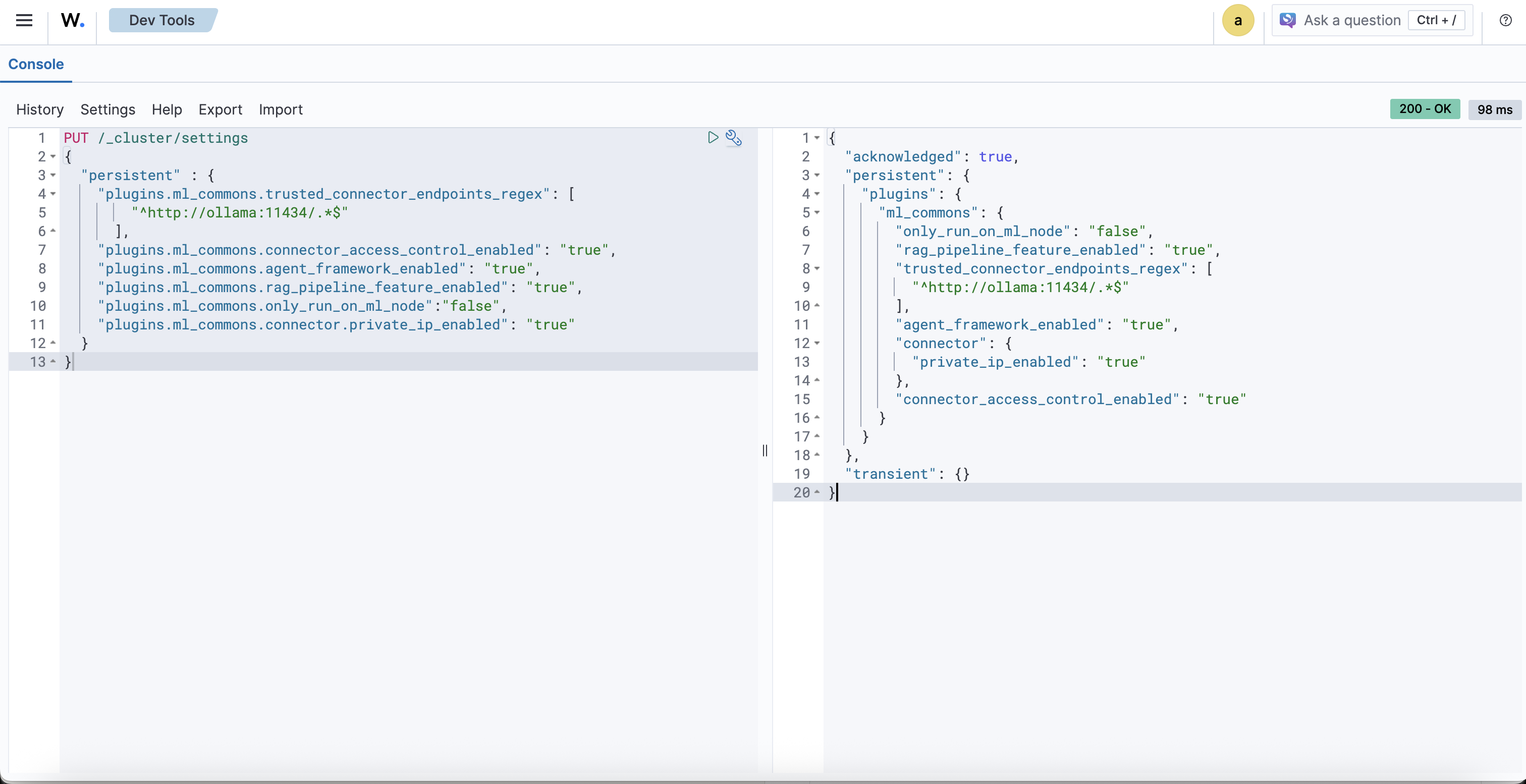
Navigate to Indexer management > DevTools and configure ML tasks to run on any node (in the single-node context, this is not critical).
PUT /_cluster/settings
{
  "persistent" : {
    "plugins.ml_commons.trusted_connector_endpoints_regex": [
        "^http://ollama:11434/.*$"
      ],
    "plugins.ml_commons.connector_access_control_enabled": "true",
    "plugins.ml_commons.agent_framework_enabled": "true",
    "plugins.ml_commons.rag_pipeline_feature_enabled": "true",
    "plugins.ml_commons.only_run_on_ml_node":"false",
    "plugins.ml_commons.connector.private_ip_enabled": "true"
  }
}
After execution, you should receive approximately this response:
{
  "acknowledged": true,
  "persistent": {
    "plugins": {
      "ml_commons": {
        "only_run_on_ml_node": "false",
        "rag_pipeline_feature_enabled": "true",
        "trusted_connector_endpoints_regex": [
          "^http://ollama:11434/.*$"
        ],
        "agent_framework_enabled": "true",
        "connector": {
          "private_ip_enabled": "true"
        },
        "connector_access_control_enabled": "true"
      }
    }
  },
  "transient": {}
}

Now we need to create a Connector for working with Ollama:
POST /_plugins/_ml/connectors/_create
{
    "name": "Ollama Wazuh Connector",
    "description": "Ollama Wazuh Connector for Wazuh SIEM platform",
    "version": 1,
    "protocol": "http",
    "parameters": {
      "endpoint": "ollama",
      "port": "11434",
      "model": "OpenNix/wazuh-llama-3.1-8B-v1"
    },
    "credential": {
      "api_key": ""
    },
    "actions": [
      {
        "action_type": "predict",
        "method": "POST",
        "url": "http://${parameters.endpoint}:${parameters.port}/v1/chat/completions",
        "headers": {
          "Content-Type": "application/json"
        },
        "request_body": "{\"model\":\"${parameters.model}\",\"messages\":[{\"role\":\"system\",\"content\":\"You are a helpful cybersecurity assistant specialized in Wazuh SIEM platform.\"},{\"role\":\"user\",\"content\":\"${parameters.prompt}\"}],\"stream\":false}"
      }
    ]
}
As a result, you should receive a connector_id. Make sure to save it.
{
  "connector_id": "2v_b35sBQi0m6e1zQLUF"
}
Create a model group:
POST /_plugins/_ml/model_groups/_register
{
    "name": "Ollama Model Group",
    "description": "Model group for Ollama models"
}
After execution, you should receive approximately this response:
{
  "model_group_id": "2__b35sBQi0m6e1zQbVT",
  "status": "CREATED"
}
Don’t forget to save the model_group_id.
Register and deploy the model in the previously created model group:
POST /_plugins/_ml/models/_register?deploy=true
{
    "name": "Ollama model",
    "function_name": "remote",
    "model_group_id": "<model_group_id>",
    "description": "Ollama OpenNix Model",
    "connector_id": "<connector_id>"
}
After execution, you will receive approximately this response:
{
  "task_id": "3P_b35sBQi0m6e1zQbXG",
  "status": "CREATED",
  "model_id": "3f_b35sBQi0m6e1zQbXk"
}
Make sure to save the model_id.
Now you can try asking the model something, for example:
POST /_plugins/_ml/models/<model_id>/_predict
{
  "parameters": {
    "prompt": "What is Wazuh?"
  }
}
Example response:
{
  "inference_results": [
    {
      "output": [
        {
          "name": "response",
          "dataAsMap": {
            "id": "chatcmpl-620",
            "object": "chat.completion",
            "created": 1768988594,
            "model": "OpenNix/wazuh-llama-3.1-8B-v1",
            "system_fingerprint": "fp_ollama",
            "choices": [
              {
                "index": 0,
                "message": {
                  "role": "assistant",
                  "content": """Wazuh is a popular open-source Security Information and Event Management (SIEM) platform that provides real-time monitoring, threat detection, and incident response capabilities to help organizations protect themselves against cyber threats.

Wazuh was originally developed by Pablo Soto in 2009, and it has since become one of the leading SIEM platforms on the market. It's widely used by various industries, including healthcare, finance, education, and government agencies.

Some of the key features of Wazuh include:

1. **Real-time monitoring**: Wazuh continuously monitors system logs, network traffic, and other data sources to identify potential security threats.
2. **Threat detection**: Wazuh uses rules-based and machine learning-based approaches to detect known and unknown threats, including malware, suspicious network activity, and anomalies in system behavior.
3. **Incident response**: Wazuh provides tools for responding to detected incidents, such as alerting administrators, blocking IP addresses, or quarantining affected systems.
4. **Integration with other tools**: Wazuh can integrate with a wide range of security-related tools and platforms, including firewalls, intrusion detection systems (IDSs), and ticketing systems.

Some of the benefits of using Wazuh include:

1. **Improved incident response**: By detecting potential threats early on, Wazuh helps organizations respond quickly to incidents before they escalate into major problems.
2. **Enhanced security monitoring**: Wazuh provides comprehensive visibility into system logs and network traffic, enabling organizations to better understand their security posture and identify potential vulnerabilities.
3. **Reduced regulatory risks**: By leveraging Wazuh's compliance features, organizations can demonstrate that they're taking a proactive approach to security and compliance.

Wazuh is highly customizable and has a large community of developers and users who contribute to its development and support. If you'd like to learn more about how Wazuh can help your organization improve its cybersecurity posture, I'm here to guide you!"""
                },
                "finish_reason": "stop"
              }
            ],
            "usage": {
              "prompt_tokens": 36,
              "completion_tokens": 401,
              "total_tokens": 437
            }
          }
        }
      ],
      "status_code": 200
    }
  ]
}
After verifying that everything works, it’s time to create an agent:
POST _plugins/_ml/agents/_register
{
  "name": "wazuh_agent",
  "type": "conversational",
  "description": "AI-powered assistant for Wazuh security event analysis and platform guidance",
  "llm": {
    "model_id": "<model_id>",
    "parameters": {
      "max_iteration": 5,
      "stop_when_no_tool_found": true,
      "response_filter": "$.choices[0].message.content",
      "system_instruction": "You are an expert cybersecurity analyst assistant specialized in the Wazuh SIEM platform. Your role is to help security analysts understand and respond to security events, configure Wazuh effectively, and provide actionable security guidance. When analyzing alerts, focus on providing context about the threat, potential impact, and recommended response actions. Always prioritize clarity and actionability in your responses.",
      "prompt": "\n\nHuman: ${parameters.question}\n\nAssistant:"
    }
  },
  "memory": {
    "type": "conversation_index"
  },
  "tools": [
    {
      "type": "SearchIndexTool",
      "name": "WazuhAlertsSearch",
      "description": "Search through Wazuh security alerts and events. Use this tool when the user asks about specific alerts, security events, or wants to analyze patterns in security data.",
      "parameters": {
        "index": "wazuh-alerts-*",
        "source_field": ["rule.description", "rule.level", "agent.name", "data.srcip", "data.dstip", "timestamp"]
      }
    },
    {
      "type": "CatIndexTool",
      "name": "IndexInformation",
      "description": "Get information about available Wazuh indices. Use this when you need to understand what data is available or check index health."
    }
  ],
  "app_type": "os_chat"
}
Example response:
{
  "agent_id": "ks0a4JsBX6ITrL3aNQNr"
}
Don’t forget to save the agent_id.
Now let’s test the agent:
POST _plugins/_ml/agents/<agent_id>/_execute
{
  "parameters": {
    "question": "Who are you?",
    "verbose": false
  }
}
Example response:
{
  "inference_results": [
    {
      "output": [
        {
          "name": "memory_id",
          "result": "gs0D4JsBX6ITrL3aEwMW"
        },
        {
          "name": "parent_interaction_id",
          "result": "g80D4JsBX6ITrL3aEwOB"
        },
        {
          "name": "response",
          "dataAsMap": {
            "response": """{"id":"chatcmpl-580","object":"chat.completion","created":1.768989947E9,"model":"OpenNix/wazuh-llama-3.1-8B-v1","system_fingerprint":"fp_ollama","choices":[{"index":0.0,"message":{"role":"assistant","content":"I\u0027m an artificial intelligence designed to assist you with Wazuh, a powerful and flexible Security Information and Event Management (SIEM) system. My purpose is to help users like you monitor, detect, and respond to security threats in their environments.\n\nWhat can I do for you? Would you like me to:\n\n1. **Provide configuration guidance**: Share best practices or troubleshoot Wazuh installation and configuration?\n2. **Troubleshoot an issue**: Help resolve problems with Wazuh, such as agent connectivity issues, agent configuration errors, or alert fatigue?\n3. **Develop a security strategy**: Offer insights on how to use Wazhu for threat detection, compliance monitoring, and incident response?\n4. **Code-level support**: Assist with writing custom rules or plugins for Wazhu, or provide expertise in script-based solutions?\n\nPlease let me know how I can best assist you!"},"finish_reason":"stop"}],"usage":{"prompt_tokens":38.0,"completion_tokens":181.0,"total_tokens":219.0}}""",
            "additional_info": {}
          }
        }
      ]
    }
  ]
}
After creating the agent, it needs to be connected to OpenSearch Assistant.
Execute:
docker compose exec wazuh.indexer curl -k -X PUT \
  "https://localhost:9200/.plugins-ml-config/_doc/os_chat" \
  --cert /usr/share/wazuh-indexer/config/certs/admin.pem \
  --key /usr/share/wazuh-indexer/config/certs/admin-key.pem \
  --cacert /usr/share/wazuh-indexer/config/certs/root-ca.pem \
  -H "Content-Type: application/json" \
  -d '{
    "type": "os_chat_root_agent",
    "configuration": {
      "agent_id": "<agent_id>"
    }
  }'
The result should be:
{
   "_index":".plugins-ml-config",
   "_id":"os_chat",
   "_version":2,
   "result":"updated",
   "_shards":{
      "total":1,
      "successful":1,
      "failed":0
   },
   "_seq_no":2,
   "_primary_term":14
}
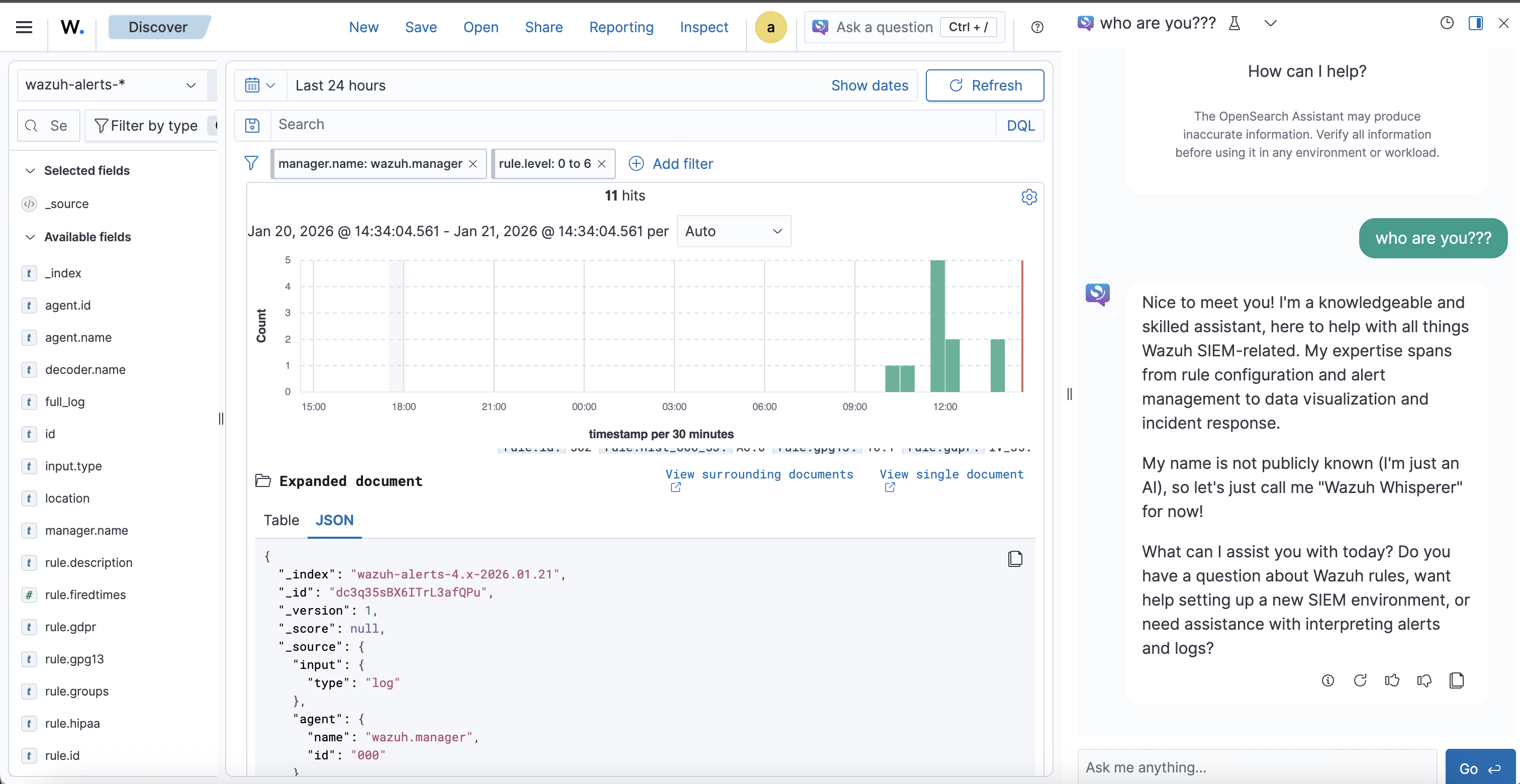
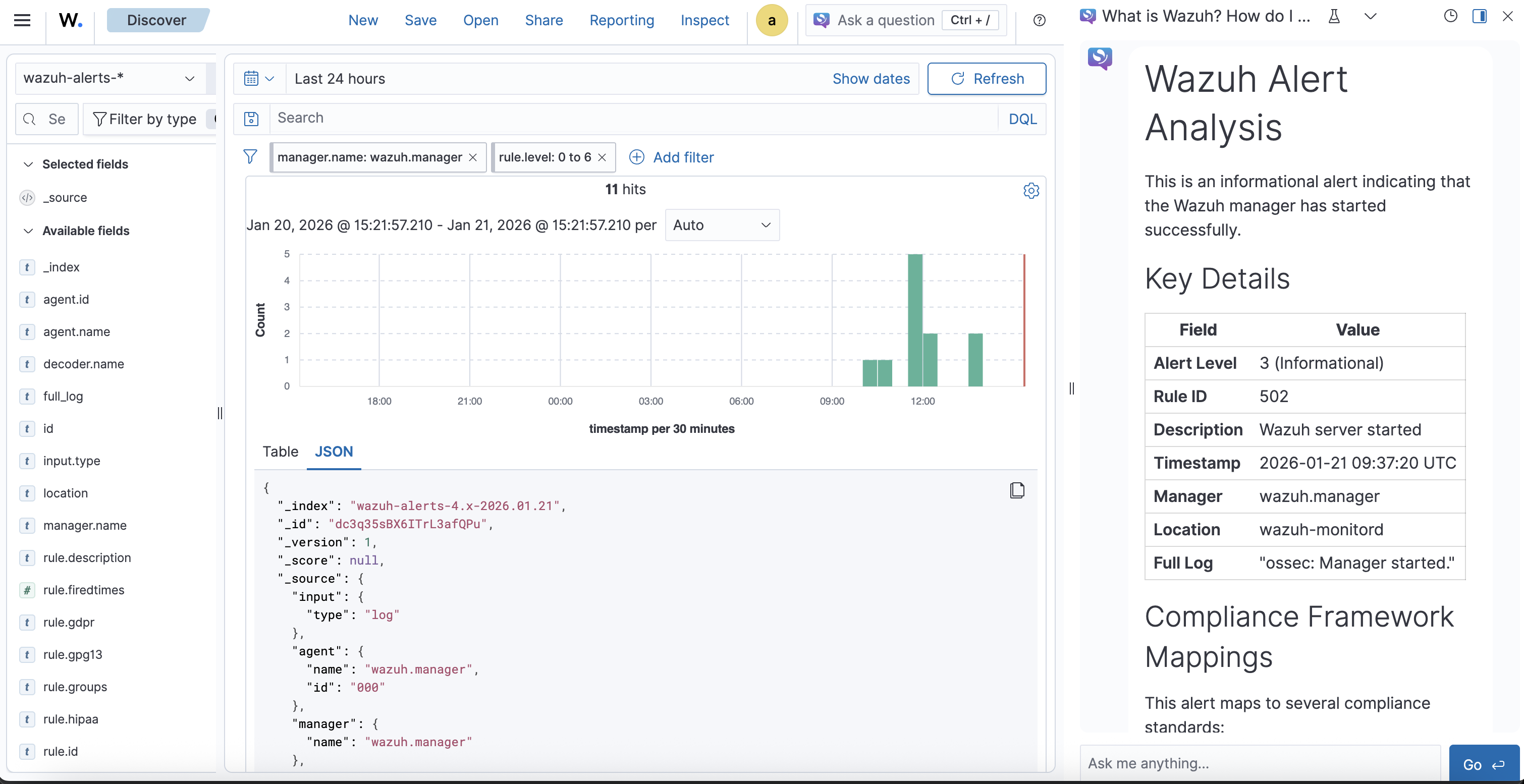
The integration is complete and you can now use the agent. The chat is available in the upper right corner.

Using Ollama Cloud
Ollama Cloud provides access to premium models such as gpt-oss, deepseek-v3.1, minimax-m2.1, and many others.
The advantage is that the model runs on Ollama’s infrastructure and the free plan is quite decent.
Before integrating Ollama Cloud, you need to:
The configuration and integration differs little from the regular Ollama REST API integration.
Configuring Cluster Settings
Navigate to Indexer management > DevTools and configure ML tasks to run on any node (in the single-node context, this is not critical).
PUT /_cluster/settings
{
  "persistent" : {
    "plugins.ml_commons.trusted_connector_endpoints_regex": [
        "^http://ollama:11434/.*$",
        "^https://ollama\\.com/.*$"
      ],
    "plugins.ml_commons.connector_access_control_enabled": "true",
    "plugins.ml_commons.agent_framework_enabled": "true",
    "plugins.ml_commons.rag_pipeline_feature_enabled": "true",
    "plugins.ml_commons.only_run_on_ml_node":"false",
    "plugins.ml_commons.connector.private_ip_enabled": "true"
  }
}
Response:
{
  "acknowledged": true,
  "persistent": {
    "plugins": {
      "ml_commons": {
        "only_run_on_ml_node": "false",
        "rag_pipeline_feature_enabled": "true",
        "trusted_connector_endpoints_regex": [
          "^http://ollama:11434/.*$",
          """^https://ollama\.com/.*$"""
        ],
        "agent_framework_enabled": "true",
        "connector": {
          "private_ip_enabled": "true"
        },
        "connector_access_control_enabled": "true"
      }
    }
  },
  "transient": {}
}
Creating ML Connector for Ollama Cloud
POST _plugins/_ml/connectors/_create
{
  "name": "Ollama Cloud Connector",
  "description": "Connector to Ollama Cloud API",
  "version": 1,
  "protocol": "http",
  "parameters": {
    "endpoint": "ollama.com",
    "model": "minimax-m2.1",
    "response_filter": "$.message.content"
  },
  "credential": {
    "api_key": "YOUR_API_KEY"
  },
  "actions": [
    {
      "action_type": "predict",
      "method": "POST",
      "url": "https://${parameters.endpoint}/api/chat",
      "headers": {
        "Content-Type": "application/json",
        "Authorization": "Bearer ${credential.api_key}"
      },
      "request_body": "{\"model\":\"${parameters.model}\",\"messages\":[{\"role\":\"user\",\"content\":\"${parameters.prompt}\"}],\"stream\":false}"
    }
  ]
}
Response:
{
  "connector_id": "ps0x4JsBX6ITrL3afAP0"
}
Creating Model Group
POST _plugins/_ml/model_groups/_register
{
  "name": "Ollama Cloud Models",
  "description": "Model group for Ollama Cloud integration"
}
Response:
{
  "model_group_id": "qc0y4JsBX6ITrL3aewNC",
  "status": "CREATED"
}
Registering the Model
POST _plugins/_ml/models/_register
{
  "name": "Ollama Cloud MiniMax M2.1",
  "function_name": "remote",
  "model_group_id": "<model_group_id>",
  "description": "MiniMax M2.1 model via Ollama Cloud",
  "connector_id": "<connector_id>"
}
Response:
{
  "task_id": "qs004JsBX6ITrL3aBQO4",
  "status": "CREATED",
  "model_id": "q8004JsBX6ITrL3aBQPb"
}
Testing the Model
Make a request:
POST _plugins/_ml/models/<model_id>/_predict
{
  "parameters": {
    "prompt": "What is Wazuh?"
  }
}
Example response:
{
  "inference_results": [
    {
      "output": [
        {
          "name": "response",
          "dataAsMap": {
            "response": """**Wazuh** is an open-source **security platform** used for threat detection, security monitoring, incident response, and compliance management. It's widely used by organizations of all sizes to protect their IT environments.

Here's a breakdown of what Wazuh does and its key aspects:

1.  **Core Functionality (What it does):**
    *   **Log Analysis:** Collects, parses, normalizes, and analyzes logs from a vast array of sources (operating systems, applications, network devices, cloud services, firewalls, IDS/IPS).
    *   **File Integrity Monitoring (FIM):** Continuously monitors critical system files and directories for unauthorized changes, helping detect malware or intrusions.
    *   **Vulnerability Detection:** Scans systems and applications to identify known security weaknesses.
    *   **Threat Detection & Response:** Uses signature-based (rules) and anomaly-based detection techniques to identify security threats like attacks, malware, and suspicious activities. Includes capabilities for active response (e.g., blocking an IP).
    *   **Security Configuration Assessment (SCA):** Checks systems against security benchmarks (like CIS) to ensure hardening compliance.
    *   **Incident Management:** Helps correlate events and investigate security incidents.
    *   **Compliance Reporting:** Generates reports for compliance standards like PCI DSS, GDPR, HIPAA, NIST, and others.

2.  **Key Components (How it works):**
    *   **Wazuh Manager:** The central component that receives, processes, and analyzes security data from agents. It manages the agents, stores alerts, and runs correlation and analysis engines.
    *   **Wazuh Agents:** Lightweight software deployed on endpoints (servers, workstations, cloud instances - Linux, Windows, macOS) to collect security data. Agents perform local tasks like log analysis, FIM, SCA, and active response, then send relevant data to the Manager. Agents can also run independently in agentless mode for certain devices.
    *   **Wazuh Indexer:** A highly scalable search and analytics engine used to store, index, and correlate large volumes of security events and alerts. Based on OpenSearch (a fork of Elasticsearch).
    *   **Wazuh Dashboard:** A web-based interface for visualizing security data, managing the Wazuh platform, monitoring alerts, conducting investigations, and generating reports. Built on OpenSearch Dashboards.

3.  **Architecture:**
    *   Agents collect data from endpoints.
    *   Agents send data to the Manager.
    *   The Manager analyzes data using rules (based on OSSEC) and correlation engines.
    *   Processed data and alerts are forwarded to the Indexer for storage and indexing.
    *   The Dashboard queries the Indexer to present a unified view of the security posture.

4.  **Capabilities & Use Cases:**
    *   **Threat Detection:** Identify known attack signatures, suspicious patterns, and anomalous behavior.
    *   **Incident Response:** Investigate alerts, understand attack chains, and trigger automated responses.
    *   **Compliance:** Automate the monitoring and reporting needed for various regulatory standards.
    *   **Cloud Security:** Monitor cloud environments (AWS, Azure, GCP) and containers (Docker, Kubernetes) for security issues.
    *   **Endpoint Detection and Response (EDR):** Offers foundational EDR capabilities like FIM, process monitoring, and response actions.

5.  **Open-Source Ecosystem & Extensibility:**
    *   Built on the foundation of the widely used OSSEC HIDS (Host-based Intrusion Detection System).
    *   Highly extensible with a rich set of built-in integrations and APIs.
    *   Allows users to create custom rules, decoders, and integrations.
    *   Benefits from a large community contributing rules, scripts, and integrations.
    *   Integrates seamlessly with the Elastic Stack (Elasticsearch, Kibana/Discover, Logstash - often used interchangeably, though Wazuh recommends its own Indexer/Dashboard stack for optimized performance) for powerful data visualization and analysis (though Wazuh can be used independently).

**In essence, Wazuh acts as a comprehensive Security Information and Event Management (SIEM) and Host-based Intrusion Detection System (HIDS) solution, providing organizations with deep visibility into their security landscape across physical, virtual, cloud, and containerized environments.** It's a popular, powerful, and flexible alternative to commercial SIEM solutions."""
          }
        }
      ],
      "status_code": 200
    }
  ]
}
Creating the Agent
POST _plugins/_ml/agents/_register
{
  "name": "wazuh_agent_ollama_cloud",
  "type": "conversational",
  "description": "AI-powered assistant for Wazuh security event analysis",
  "llm": {
    "model_id": "q8004JsBX6ITrL3aBQPb",
    "parameters": {
      "max_iteration": 5,
      "stop_when_no_tool_found": true,
      "response_filter": "$.message.content",
      "system_instruction": "You are an expert cybersecurity analyst assistant specialized in the Wazuh SIEM platform. Your role is to help security analysts understand and respond to security events, configure Wazuh effectively, and provide actionable security guidance. When analyzing alerts, focus on providing context about the threat, potential impact, and recommended response actions. Always prioritize clarity and actionability in your responses.",
      "prompt": "\n\nHuman: ${parameters.question}\n\nAssistant:"
    }
  },
  "memory": {
    "type": "conversation_index"
  },
  "tools": [
    {
      "type": "SearchIndexTool",
      "name": "WazuhAlertsSearch",
      "description": "Search through Wazuh security alerts and events. Use this tool when the user asks about specific alerts, security events, or wants to analyze patterns in security data.",
      "parameters": {
        "index": "wazuh-alerts-*",
        "source_field": ["rule.description", "rule.level", "agent.name", "data.srcip", "data.dstip", "timestamp"]
      }
    },
    {
      "type": "CatIndexTool",
      "name": "IndexInformation",
      "description": "Get information about available Wazuh indices. Use this when you need to understand what data is available or check index health."
    }
  ],
  "app_type": "os_chat"
}
Response:
{
  "agent_id": "uM1H4JsBX6ITrL3aqANb"
}
Connecting the Agent to OpenSearch Assistant
Execute:
docker compose exec wazuh.indexer curl -k -X PUT \
  "https://localhost:9200/.plugins-ml-config/_doc/os_chat" \
  --cert /usr/share/wazuh-indexer/config/certs/admin.pem \
  --key /usr/share/wazuh-indexer/config/certs/admin-key.pem \
  --cacert /usr/share/wazuh-indexer/config/certs/root-ca.pem \
  -H "Content-Type: application/json" \
  -d '{
    "type": "os_chat_root_agent",
    "configuration": {
      "agent_id": "<agent_id>"
    }
  }'
Response:
{
   "_index":".plugins-ml-config",
   "_id":"os_chat",
   "_version":3,
   "result":"updated",
   "_shards":{
      "total":1,
      "successful":1,
      "failed":0
   },
   "_seq_no":3,
   "_primary_term":14
}
The setup is complete. Example of Ollama Cloud chat in action:

Conclusion
In this guide, we covered two options for integrating an AI assistant into Wazuh Dashboard: local Ollama installation and using Ollama Cloud. Both approaches significantly improve the efficiency of security event analysis, providing SOC analysts with a tool for rapid alert interpretation and response recommendations.
Local installation ensures full control over data and compliance with security requirements, while Ollama Cloud provides access to more powerful models without the need to allocate computational resources.
Related Links
- Enhancing Wazuh with Ollama: Part 1
- Enhancing Wazuh with Ollama: Part 2
- Enhancing Wazuh with Ollama: Part 3
- Enhancing Wazuh with Ollama: Part 4
- AI Models for Cybersecurity
- RAG for Wazuh Documentation: Part 1
- RAG for Wazuh Documentation: Part 2
- Wazuh Docker Repository
- Ollama Wazuh Model
- OpenSearch ML Commons Documentation
Wazuh + Ollama Series Navigation:
- Part 1: Introduction to Integration
- Part 2: Configuration Setup
- Part 3: Advanced Configuration
- Part 4: Advanced Scenarios
- Local Ollama in Wazuh Dashboard (current article)